
The WordPress form is one of the most valuable additions to any website. It may not be the most feature-rich or flashy part of your website, but it’s a carrier of new relationships, business growth, and new experiences. However, a form’s value is only realized when you are properly notified of new submissions. While virtually all form plugins have the ability to alert you to new submissions, every now and then you’ll be faced with a scenario where you may need to put in a little extra work to get notifications delivered to the correct destination.
Key Takeaways
- Form notifications ensure leads and messages reach the right people at the right time.
- Default notifications can be limited — custom notifications expand flexibility and precision.
- Conditional logic allows routing messages based on department, topic, or urgency.
- Plugins like Gravity Forms, WPForms, and Elementor provide built-in tools for multiple notifications.
- Custom PHP hooks in
functions.phpenable plugin-independent control of notifications. - Using SMTP improves email deliverability and reduces notification failures.
Quick Reference
| Item | Details |
|---|---|
| Default Notification Behavior | Sends to site admin email after form submission |
| Popular Plugins Covered | Gravity Forms, Elementor, WPForms, Ninja Forms, Contact Form 7 |
| Advanced Features | Conditional logic, multiple recipients, custom content, scheduling |
| PHP Customization | Hook into wp_mail for global notifications |
| Best Practice | Use SMTP for reliable delivery and authentication |
Key Definitions
| Term | Meaning |
|---|---|
| Notification | An automated email alert sent when a visitor submits a form on your website. |
| Conditional Logic | A rule-based system that triggers different actions based on user input. |
| SMTP | Simple Mail Transfer Protocol — ensures email authentication for reliable delivery. |
| wp_mail | A core WordPress function used to send emails. Developers can hook into it to modify notifications. |
| Merge Tags | Dynamic placeholders (like user names or form fields) used in personalized emails. |
Custom Notifications – Why You May Need Them
Form plugins all have notification capabilities, so why would you need to go the extra mile to add custom notifications? The most obvious answer here is that the notification potential of the form plugin is limited — either in functionality or number (e.g., you can only add one notification per form). Here are a few other reasons:
1. Customizing Notifications to Relevant Team Members
As mentioned above, some plugins come with limitations such as the number of notifications or the number of recipients. Custom notifications can be used to override these limitations. For example, instead of using multiple forms — each with its own notification — custom conditional notifications can be used to send the form to a particular destination depending on the subject.
2. Tailoring the Content of the Notifications
One key benefit of customized notifications is that they can be, well, customized. This means including additional data in the form, as well as formatting the message body of the form, adding branding, and generally ensuring it stands out in the recipient’s inbox.
3. Send Notifications to the User for Confirmation
Since not all plugins allow for multiple notifications, custom notifications can be used to inform the user or visitor that their form was submitted successfully, along with any additional instructions on the next steps to perform.
4. Reducing Noise with Conditional Logic
Not every form submission needs an immediate notification — perhaps you only want to be alerted about certain kinds of leads or queries. Conditional logic notifications can help reduce noise, ensuring that you’re only notified about relevant submissions. This is especially useful in high-volume situations where not every response requires the same level of urgency.
5. Custom Notification Schedules
There may be instances where notifications need to be sent on a schedule. For example, instead of receiving individual emails for each submission, you might want to get a daily or weekly summary of all form submissions to reduce the email clutter. Some advanced configurations can help set up notifications at specific times.
6. Customizing Notifications Based on User Behavior
You may want to adjust notifications based on user behavior—such as different notifications for first-time submissions versus repeat users. This can help you treat loyal customers differently, perhaps by adding personalized thank-you messages or prioritizing their requests.
Also read: Tips to Grow Your WordPress Blog in 2023
How to Enable Notifications in Popular Form Plugins
Gravity Forms
When logged into the WordPress back-end, navigate to Forms > Forms.

Click Edit on the form you want to modify. Then navigate to Settings > Notifications.

With Gravity Forms you can create multiple notifications for each form, useful if you have to send out different notifications to different recipients or via several email services or when specific conditions are met.
To add a new notification click on the Add New button and complete the necessary fields, including the notification name, the appropriate email service (leave on default if unsure), the event that should trigger the notification, and so on.

Bonus: Gravity Forms Conditional Logic
Want to add some intelligence to your form’s notifications? Check Enable conditional logic. For this example we created a drop-down with four departments: Engineering, Management, Sales, and Support. This allows the form user to determine where their email should go.

Conditional logic can be used to send the notification to the relevant department as you can see here:
- Adding a ‘Department’ dropdown to the form. The notification can then be sent to whichever department is selected in the form.
- A notification can be fired off whenever a form is submitted with a specific email address — for instance, VIP customers or suppliers.
- Notifications can also be sent based on multiple factors, such as email address and message content, to tailor B2B responses.
When you’re done, click the Update Notification button at the bottom of the page.
Elementor
Elementor makes notifications available within its form widget (Elementor Pro required). Once you’ve added the form widget to your page, click on Actions After Submit under Content in the left-hand pane.
Under Add Action, click on Email. This adds another tab called Email.
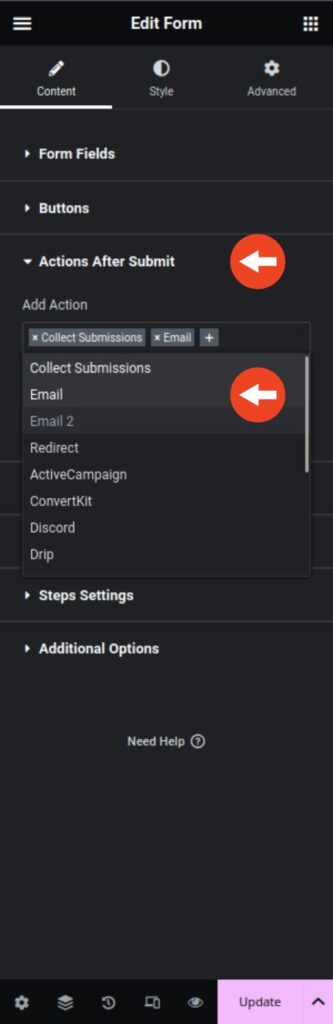
The default for the Email action is to send a notification of the submitted form to the site administrator. To send to multiple recipients, add addresses to the To field, separated by commas.

Email2 can be added as a second action to send additional alerts. While Elementor lacks conditional logic, its simplicity is ideal for smaller sites.
Also read: 8 Features Your E-commerce Website Needs To Be Successful
WPForms
With over 6 million installs, WPForms is one of the best free WordPress form plugins. To edit notifications, navigate to WPForms > All Forms → Edit → Settings > Notifications.

The default notification sends an alert to the admin with the submission in the body. You can add multiple notifications in the Pro version using conditional logic.
Ninja Forms
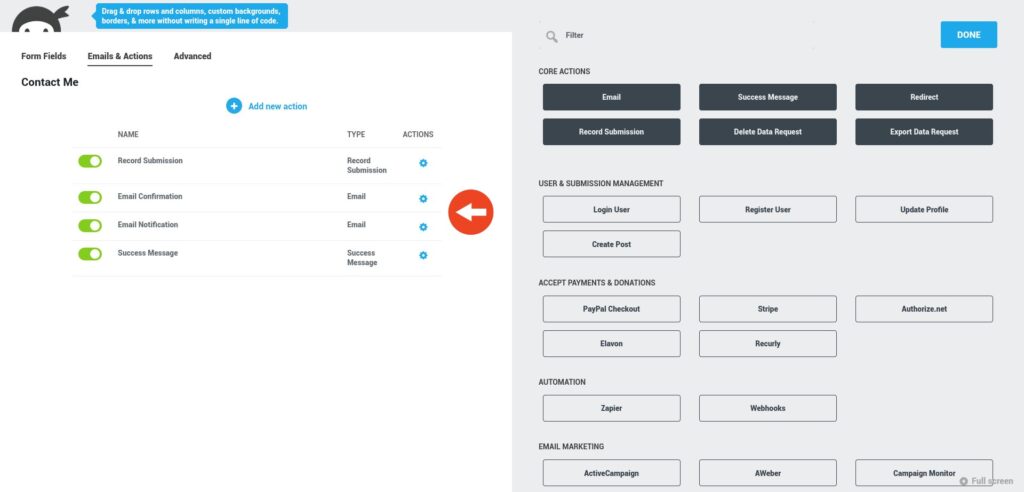
Ninja Forms makes it easy to add forms and notifications. Go to Ninja Forms > Dashboard, select a form template or start from scratch.

After creating your form fields, click the Emails & Actions tab. In the left-hand pane, click Add new action to add more notifications.
Contact Form 7
With over 10 million active installations, Contact Form 7 remains a powerhouse among WordPress form plugins. To view or create forms, navigate to Contact > Contact Forms. Notifications can be configured from the form edit screen under the Mail tab.
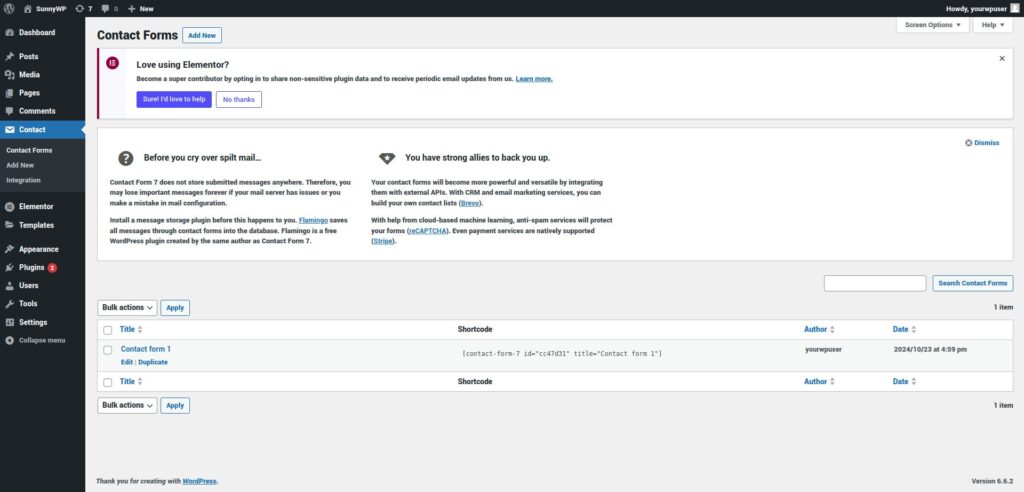
Mail and Mail (2) are automatic responses triggered upon submission. The first Mail is sent to the site admin by default, and you can add a secondary user confirmation using Mail (2).
functions.php: Plugin-independent form notifications
Sometimes form plugins fall short in functionality, leaving you unable to set custom notifications. Below we’ll show you how to hook into the wp_mail function and dispatch a notification every time WordPress sends an email.
Note: Not all forms use the wp_mail function.
Add the following code to your theme’s functions.php file:
add_filter('wp_mail', 'custom_form_submission_notification');

function custom_form_submission_notification($args) {
    // Add custom logic here to identify form submissions.
    $args['to'] .= ', [email protected]';
    $args['message'] .= "nnThis is an additional notification triggered by the custom hook.";
    return $args;
}
You can also add conditional logic to send notifications only when specific criteria are met:
add_filter('wp_mail', 'conditional_form_submission_notification');

function conditional_form_submission_notification($args) {
    // Example conditions based on the email content
    if (strpos($args['subject'], 'Form Submission') !== false) {
        $additional_recipient = '[email protected]';
        if (!empty($args['to'])) {
            $args['to'] .= ', ' . $additional_recipient;
        } else {
            $args['to'] = $additional_recipient;
        }
        $args['message'] .= "nnNote: This is a high-priority form submission.";
    }

    if (strpos($args['message'], 'urgent') !== false) {
        $args['to'] .= ', [email protected]';
    }
    return $args;
}
Explanation:
- Checks whether the subject contains “Form Submission”; if so, adds
[email protected]as a recipient. - If the message body contains “urgent,” an extra recipient (
[email protected]) is added.
Also read: 10 Reasons to Hire WordPress Website Management Services
Best Practices for Form Notifications
- Write an attention-grabbing subject line — keep it under 40 characters, avoid spam-trigger words, and use power words.
- Use personalization — merge tags let you greet users by name and include submission details.
- Be clear and concise — communicate the intent of the notification in plain language with essential next steps.
- Keep your tone branded — use the same voice and style as your other communications to build trust and consistency.
- Make it visually appealing — even simple branding or a small graphic can help your notification stand out in crowded inboxes.
FAQ: WordPress Notification
What are the default notification settings in most WordPress form plugins?
Most plugins like WPForms, Contact Form 7, and Gravity Forms send form submissions to the site administrator by default. You can change the recipient in the form or plugin settings.
Why aren’t my form notifications being delivered?
This is usually due to server or domain email configuration issues. Installing an SMTP plugin authenticates emails and improves deliverability.
How can I send notifications to different team members based on form input?
Use conditional logic (available in Gravity Forms and WPForms Pro) to route submissions to specific recipients depending on user choices like department or topic.
Can I send a confirmation email to users after submission?
Yes — many plugins allow multiple notifications, including user confirmation emails to acknowledge receipt.
What’s the benefit of using SMTP for form notifications?
SMTP ensures emails are properly authenticated and reduces the chance they land in spam folders.
Conclusion
Effective form notifications are key to maximizing the value of WordPress forms. Customizing notifications beyond defaults lets you route messages intelligently, alert the right people, and improve response times. Whether you add conditional logic, create custom PHP hooks, or configure SMTP delivery, that extra effort pays off in better communication and workflow efficiency.
Already a Sunny HQ customer? Ask us to create smart form notifications that simplify your processes and boost productivity. Not a Sunny HQ customer yet? Choose your plan here.
Need Help with Reliable Form Notifications?
Our white-glove WordPress team can configure SMTP, conditional logic, and custom notifications on your staging site – ensuring everything just works. Learn more about the WordPress Maintenance Service trusted by small businesses and enterprises alike.