Just like the WordPress login page, the password reset page provides an opportunity for additional branding and marketing. Luckily you can change the look and feel of the password reset page in WordPress with just a little bit of effort and creativity, which is what this post is about. Let’s get started.
Key Takeaways
- Branding opportunity: The password reset page can reinforce your brand with logos and custom styling.
- Multiple approaches: Customize using plugins, CSS, or code in
functions.php. - Security matters: Add reCAPTCHA, change URLs, and limit attempts to reduce attacks.
- Common fixes: SMTP setup for missing emails, avoiding redirection loops, and clearing cache for CSS issues.
- Managed support: Sunny HQ offers WordPress hosting and maintenance that includes customization assistance.
Quick Reference
| Topic | Details |
|---|---|
| Default Page Path | wp-login.php?action=lostpassword |
| Best Customization Methods | Plugins (Frontend Reset Password, Theme My Login, LoginPress) | Custom CSS | functions.php |
| Security Enhancements | reCAPTCHA | Change Reset URL | Limit Reset Attempts |
| Common Issues | Emails not sending | Link not working | CSS not applying | Plugin conflicts |
| Time to Implement | 5–15 minutes (plugin) | 20–40 minutes (custom CSS) |
Key Definitions
| Term | Meaning |
|---|---|
| wp-login.php | The core WordPress file that generates the login, password reset, and registration forms depending on the URL action parameter. |
| Shortcode | A WordPress feature that lets you insert dynamic content (like a password reset form) into a page or post using simple bracket syntax, e.g., [reset_password]. |
| reCAPTCHA | A Google service that helps protect your site from spam and abuse by verifying that a real person (not a bot) is submitting a form. |
| SMTP | Simple Mail Transfer Protocol — the standard for sending email on the web. WordPress plugins like WP Mail SMTP ensure password reset emails are reliably delivered. |
| functions.php | A core theme file that allows developers to add PHP functions, filters, and custom CSS for WordPress customization without editing core files. |
Where Is The Password Reset Page in WordPress?
If you’re brand new to WordPress, you probably haven’t encountered the password reset page yet; it is presented whenever you click on ‘Lost your password’ on the WordPress login page.
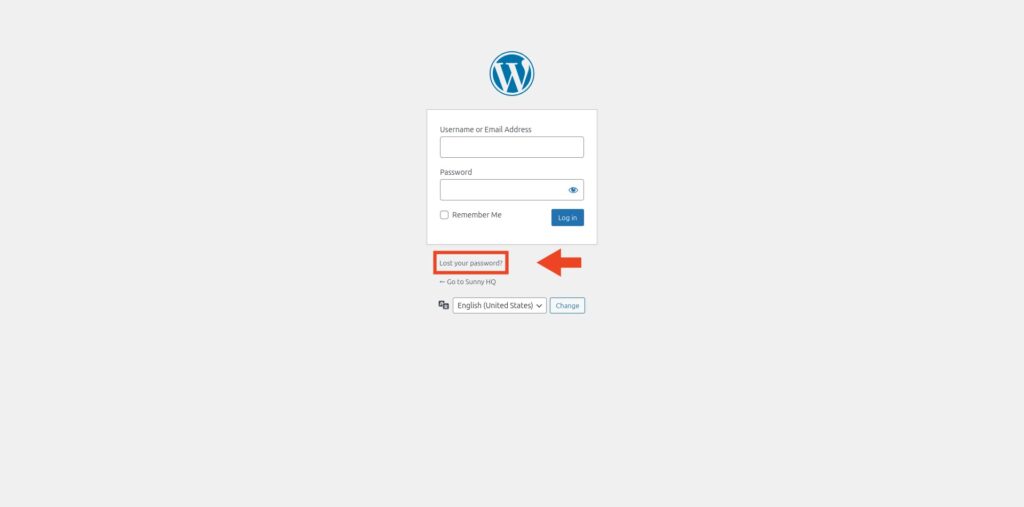
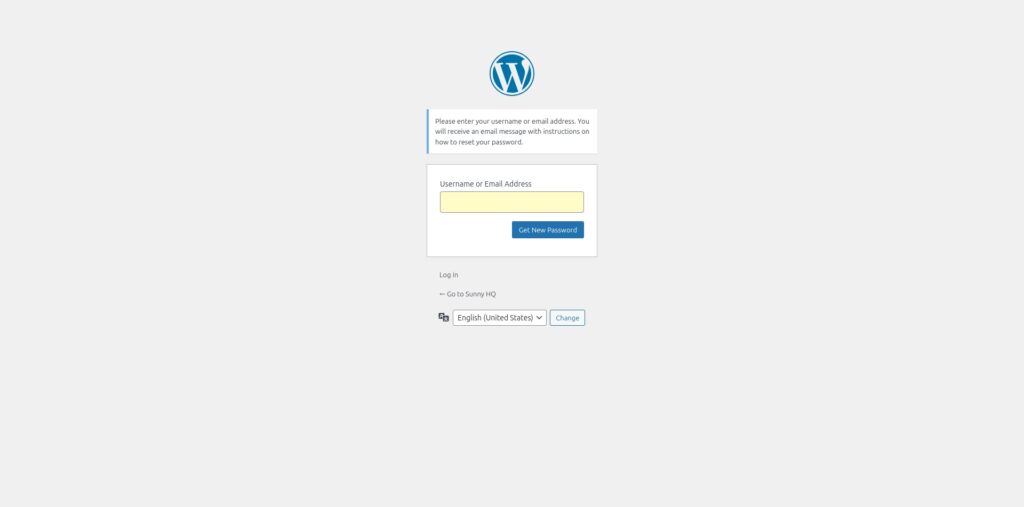
However, despite the password reset page being presented as a page, it’s not a page you’d find in the Pages dashboard. That’s because it isn’t stored as a post type in the wp_posts table.
Rather, it’s a system-generated screen, and can be accessed by adding wp-login.php?action=lostpassword to the end of your domain. For example:
https://www.yourdomain.com/wp-login.php?action=lostpassword
The user interface for the password reset page is primarily controlled by:
wp-login.php- The core file
wp-login.phpdynamically generates the password reset, lost password, and login forms based on query parameters (e.g.,?action=lostpasswordor?action=rp). - It uses the
login_header()function to output the standard WordPress login page layout.
- The core file
login_header()andlogin_footer()Hooks- These render the default header and footer of the WordPress login pages.
wp_login_form()Function (if manually embedded)- Allows developers to add login-related forms (including the reset password form) into custom pages or templates.
With that said, we can easily customize the look of the password reset page using:
- Plugins (ready-made solutions for non-developers)
- Custom CSS (basic styling using Additional CSS or theme styles)
- Custom code via
functions.phpor a plugin (modifying templates or hooks) - Completely custom pages (redirecting the reset process to a new page)
In this post we’ll be using plugins to customize the password reset page. We’ll also look at injecting custom CSS using functions.php.
Also read: Unlocking WordPress – 5 Effective Methods to Reset WP Password
Customizing the Password Reset Page Using a Plugin
Frontend Reset Password by WP Enhanced
Active Installations: 10,000 +
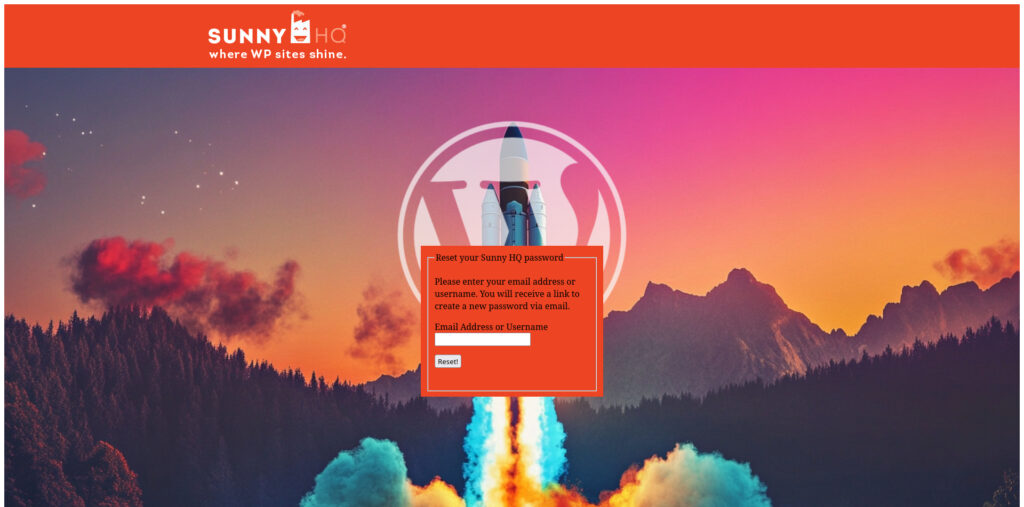
Frontend Reset Password makes use of a shortcode to create a password reset form on a page. Importantly, this shortcode can be added to any page which means you’re not confined to the default WordPress password reset page.
When the page is accessed, an email address or username can be supplied, and a password reset link will be sent to the user. Frontend Reset Password depends on default WordPress functionality, which reduces the potential for plugin conflicts or site errors.
Configuring the plugin is easy. Navigate to Settings > Frontend Reset Password. Here you can choose which page to use for the [reset_password] shortcode to display the password reset form — perfect if you’re using a page builder.
Frontend Reset Password allows you to specify a:
- Reset password page
- Reset email sent (redirection after email sent)
- New password saved (redirection after password change)
- Custom login page
You can also customize the:
- Form title & text
- Button text
- Password reset emails
We used Elementor to add a bit of color to the page on our test site (because no menu), but left the plugin’s form intact to show its appearance. The form style can be enhanced using basic CSS.
Theme My Login by Jeff Farthing
Active Installations: 70,000 +
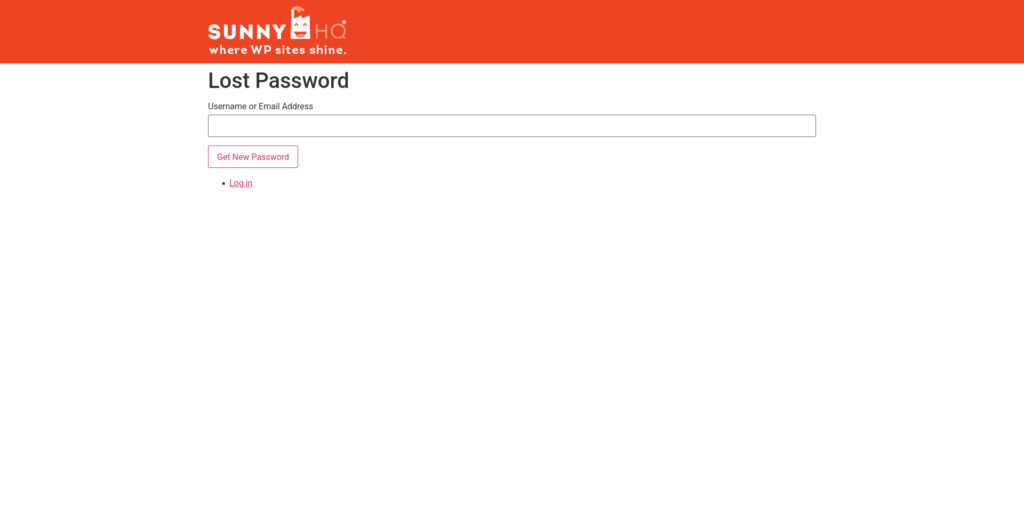
Theme My Login can customize the WordPress login, registration, and password reset pages. It includes:
- Frontend login
- Frontend registration
- Frontend password recovery
- Email-only registration option
- Automatic login after registration (auto-login)
It applies your theme’s styling to these pages without manual CSS work, making it a set-and-forget plugin (as long as you keep it updated).
We haven’t applied much styling to our test site, and it shows in the appearance of our “Lost Password” form.
Please note: At the time of writing, Theme My Login has 277 five-star reviews and 119 one-star reviews. Although close in ratio, the last one-star review was over a year ago and the plugin was updated recently — suggesting major improvements. Still, test on a staging site first.
LoginPress by Adnan
Active Installations: 200,000 +
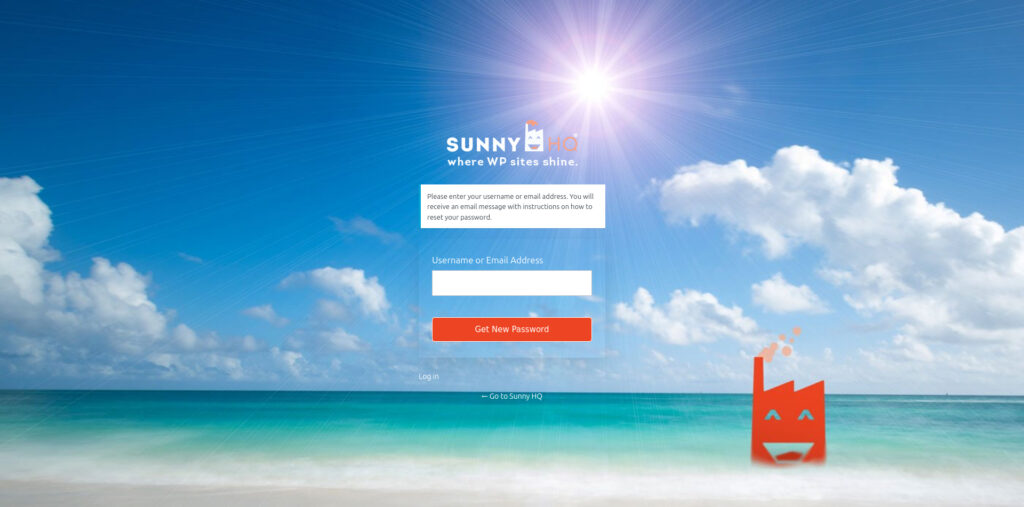
We covered LoginPress in our previous post Mastering WordPress: How to Create a Custom Login Page. While its main function is to customize the login page, because WordPress uses wp-login.php for both login and reset pages, customizing one affects the other — making LoginPress useful for reset page styling as well.
Customizing the Password Reset Page Using Code
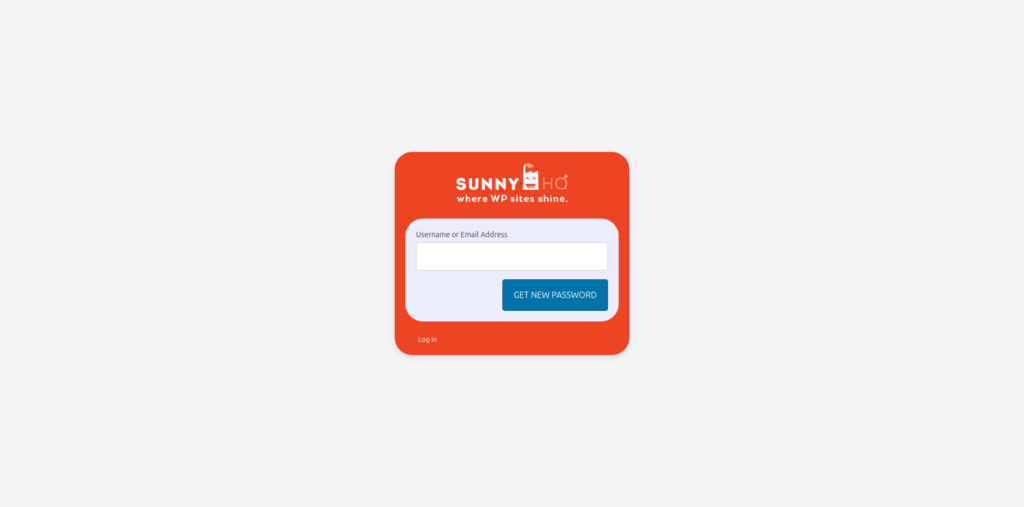
Don’t want to install another plugin? You can customize the password reset page with some CSS. Add the code below to functions.php to inject custom CSS on that page:
/* CUSTOMIZE PASSWORD RESET */
function custom_password_reset_styles() {
    if (isset($_GET['action']) && in_array($_GET['action'], ['lostpassword','rp','resetpass'])) {
        echo '<style>
        body.login {
            background-color:#f4f4f4!important;
            height:100vh;
            display:flex!important;
            align-items:center!important;
            justify-content:center!important;
        }
        #login {
            width:400px!important;
            margin:auto!important;
            padding:20px!important;
            background:#ED4523;
            border-radius:33px;
            box-shadow:0px 4px 10px rgba(0,0,0,0.1);
        }
        #login h1 a {
            background-image:url("/wp-content/uploads/2025/01/SunnyHQ-shine-logo-260x99-R.png")!important;
            background-size:contain!important;
            width:250px!important;
            height:80px!important;
        }
        .login form {
            border:none!important;
            box-shadow:none!important;
            padding:20px!important;
            background:#ececfb!important;
            border-radius:33px;
        }
        .login form input[type="text"],
        .login form input[type="password"],
        .login form input[type="email"] {
            width:100%;
            padding:10px;
            border:1px solid #ccc;
            border-radius:5px;
        }
        .wp-core-ui .button-primary {
            background-color:#0073aa!important;
            border-color:#005177!important;
            color:white!important;
            padding:10px 20px!important;
            font-size:16px!important;
            border-radius:5px!important;
            text-transform:uppercase;
        }
        .wp-core-ui .button-primary:hover {
            background-color:#005177!important;
            border-color:#003b5d!important;
        }
        .login #nav a {
            color:#fff!important;
        }
        .login #backtoblog {
            display:none;
        }
        .login .message,
        .login .error {
            display:none;
        }
        </style>';
    }
}
add_action('login_enqueue_scripts', 'custom_password_reset_styles');
The code above is clearly labeled for easy understanding. With basic CSS knowledge, you can customize most aspects of your reset password page. Here’s what ours looks like, color-coded to highlight different sections:
Enhancing Security for the Password Reset Page

The WordPress password reset page is a frequent target for brute-force attacks and phishing attempts. Attackers could trigger and intercept password reset requests, gaining access without the original password.
Here are several ways to strengthen its security. If you’re using a plugin to handle customization of your password reset page or any login-related function, check whether it includes built-in protections. Otherwise, consider the following plugins:
1. Enable reCAPTCHA
Add Google reCAPTCHA to stop automated attacks and ensure only real users can request password resets. Security plugins such as Wordfence support reCAPTCHA for login and reset pages. You can also use Advanced Google reCAPTCHA by WebFactory to apply protection across all login pages.
2. Change the Password Reset URL
The default reset page is at wp-login.php?action=lostpassword, which attackers often target. With a plugin like WP Ghost, you can rename it (e.g., /custom-reset-password) to reduce automated scans.
3. Limit Password Reset Attempts
Limit the number of reset requests per hour to block brute-force attempts. Plugins such as Wordfence or All-In-One Security (AIOS) allow cooldown periods for repeated attempts from the same IP.
Implementing these security measures greatly reduces unauthorized access and keeps your site safe.
Also read: The Role of Professional WordPress Maintenance in Securing Agency Client Sites
Troubleshooting Common Issues with the Password Reset Page
If your WordPress password reset page isn’t working, here are common issues and fixes:
Password Reset Emails Not Sending
Users not receiving reset emails usually means wp_mail or your mail server isn’t configured. Install a mail plugin such as WP Mail SMTP or Post SMTP to send through Gmail, SendGrid, or Microsoft 365.
Password Reset Link Not Working
If reset links fail, possible causes include expired links (default 24 h), filters altering links, or caching/security plugins. Ask users to request a new link and paste it manually into the browser. Disable caching on wp-login.php?action=rp and turn off Cloudflare Email Obfuscation if used.
Custom Styles Not Applying to the Reset Page
If custom CSS doesn’t appear, caching or conflicting style rules may be responsible. Try:
- Clearing browser cache and forcing refresh (Ctrl + Shift + R / Cmd + Shift + R)
- Clearing your site’s caching plugin and excluding
wp-login.php - Adding
!importantto override conflicting selectors
Also read: Clearing Cache in WordPress: Boost Performance and Resolve Issues
Redirection Loops When Customizing the Reset Page
A redirection loop occurs when the password reset page redirects to itself. Ensure redirects don’t point back to wp-login.php. If using Theme My Login, check Theme My Login → General settings. Disable custom redirects temporarily to test.
Plugin Conflicts Causing the Reset Page to Break
Some login or security plugins may interfere with password resets. Deactivate them one by one to find the culprit. Check compatibility if using multiple login plugins together (e.g., Theme My Login + LoginPress).
By systematically troubleshooting these, you can keep the password reset page working smoothly.
Conclusion
Customizing the WordPress password reset page improves branding, user experience, and security. Whether you use plugins for simplicity or custom CSS / PHP for fine control, there are many ways to tailor it. Security is essential—so keep your site maintained and monitored. For fast, professional help, choose a WordPress Hosting & Support Plan from Sunny HQ.
Frequently Asked Questions (FAQ)
Can I fully redesign the password reset page without code?
Yes. Plugins like LoginPress or Frontend Reset Password allow complete visual customization without touching PHP files.
Will customizing wp-login.php break WordPress updates?
Direct edits can break updates. Always add styling through functions.php or a custom plugin instead.
Why aren’t my password reset emails being delivered?
Because of SMTP issues or host restrictions. Use WP Mail SMTP or Post SMTP for reliable delivery via Gmail or SendGrid.
Is it safe to hide the wp-login.php URL?
Yes—plugins like WP Ghost or WPS Hide Login can safely change it, reducing automated attack attempts.
How can I preview changes before applying them live?
Use a staging site to test plugins, CSS, and redirect logic safely before deploying to production.
Need Help Customizing or Securing WordPress?
Don’t risk login issues or broken reset links. Let Sunny HQ’s experts customize and secure your WordPress login and password reset pages with white-glove support. Explore our WordPress Maintenance Services for peace of mind.