Statistics suggest that more than 55% of people use plain old human memory to store and recall passwords. But, as you know, memory isn’t always reliable. It’s easy to forget bits of information we usually remember instantly – like your WP admin login – especially if you’re one of those people who, according to NordPass, have somewhere between 70 and 80 passwords. If you’ve lost access to your WordPress account, and don’t have someone with a WP admin login to your site on speed dial, the WordPress tricks in this post can help you log into WordPress in just a few minutes.
Note that WordPress passwords cannot be recovered without some serious technical expertise. That’s because the password you enter is transformed and hashed several times before being stored in the database, as explained below. The solution, therefore, is to use one of the following methods to create a new WordPress password.
| Key Takeaways |
|---|
| ✔ Reset via Email – quickest if reset email arrives reliably. |
| ✔ Reset via Admin – use another WordPress admin account to change your password. |
| ✔ Reset via Database (phpMyAdmin) – technical but works without admin/email access. |
| ✔ Reset via WP-CLI – fastest and safest for developers and advanced users. |
| ⚠ Each method carries risks; always back up before making database or file changes. |
| Quick Reference |
|---|
| Time to Complete: 5–15 minutes depending on method |
| Risk: Medium (database & functions.php edits can break site) |
| Prerequisites: Admin access OR hosting panel access (cPanel/SSH) |
1. WordPress Managed Hosting Password Reset
Managed WordPress hosting is the easiest and by far least technical method of resetting your password, getting your username or email address changed, or getting any other technical WordPress task completed. In most cases, all it takes is a quick call or email to get your password reset. Chances are they’ll use one of the methods described below to quickly and easily reset your password – you don’t have to lift a finger.
Also read: The Complete Guide to Choosing a WordPress Maintenance Agency
2. WordPress Password Reset Feature
If you don’t have managed WordPress hosting, your first course of action should be the WordPress Password Reset Feature located at the bottom of the WordPress login page. This page is usually located at <yourdomain.com>/wp-login.php.
Sometimes, however, domains have a custom login screen as part of their branding or as an added security measure. If this is the case, here’s what you can do:
- Paste the following URL in your browser and press enter: https://yourdomain.com/wp-login.php?action=lostpassword. Be sure to replace yourdomain.com with the correct domain.
- Or, if that doesn’t work, add the following to the end of your site’s login screen URL: ?action=lostpassword. For example https://www.yourdomain.com/login?action=lostpassword
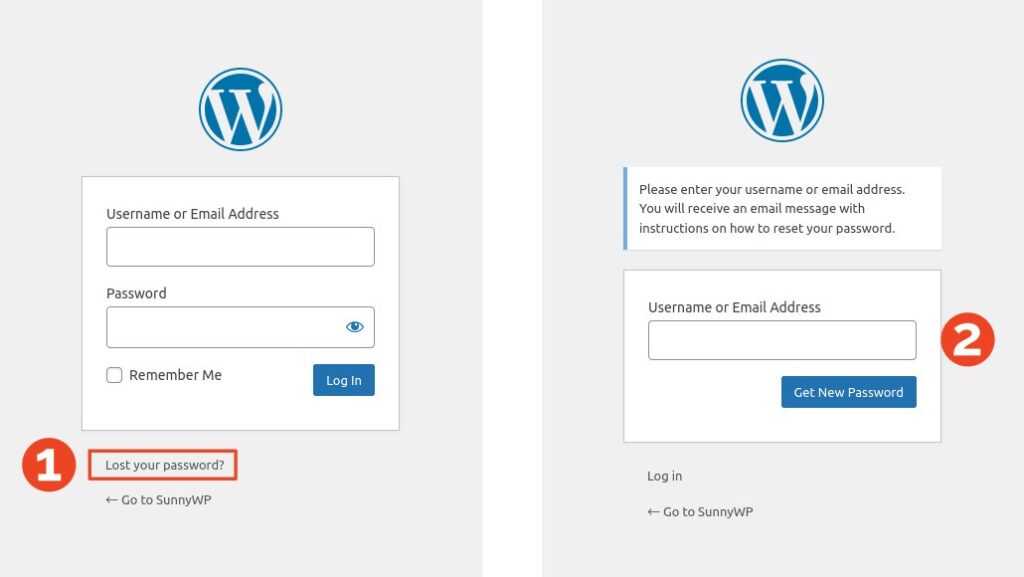
Notice the ‘Lost your password?‘ link at the bottom of the page? Click on it to start the WordPress reset password process. You’ll be asked to enter an email address, which should be the email address you used to create the account. When you’ve entered your email address, click ‘Get New Password‘ and check your inbox for an email with a password recovery link.
3. WordPress Password Reset with phpMyAdmin/MySQL
Still can’t get your WordPress password changed? One surefire way to regain control of your WordPress account is by manually changing the password in the WordPress MySQL database.
| Important: Given that this step requires work on the WordPress database, it is strongly recommended that you back up the database before you continue. |
Log into your cPanel account and find phpMyAdmin under Databases.
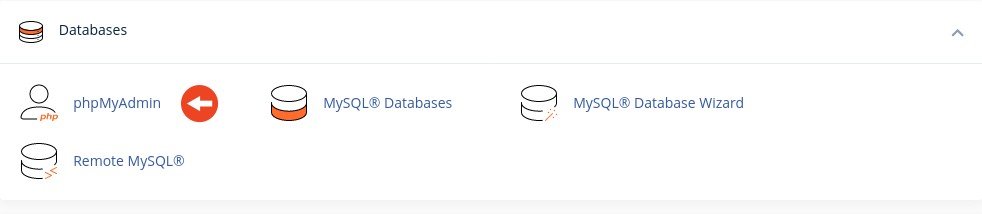
With phpMyAdmin open:
- Select your WordPress database from the pane on the left
- Select the wp_users table from the list of tables below the database name
- Find your username in the list of users, and click Edit
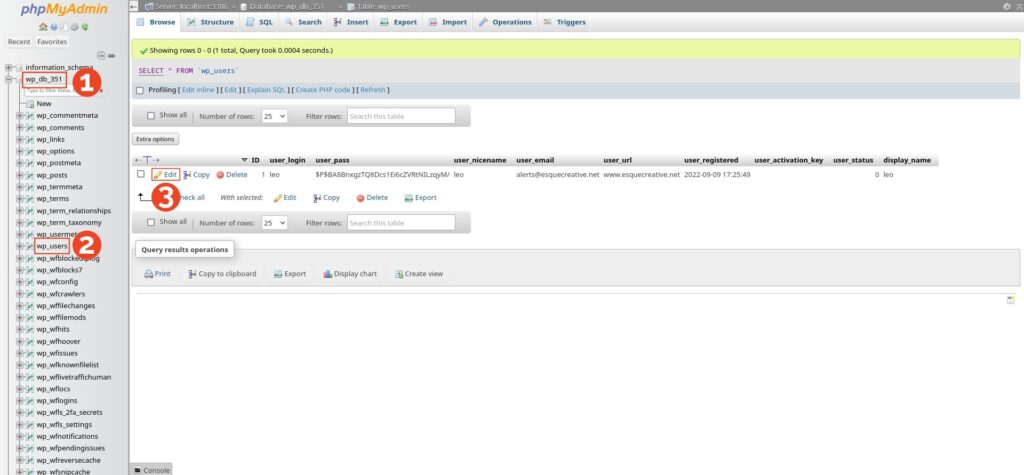
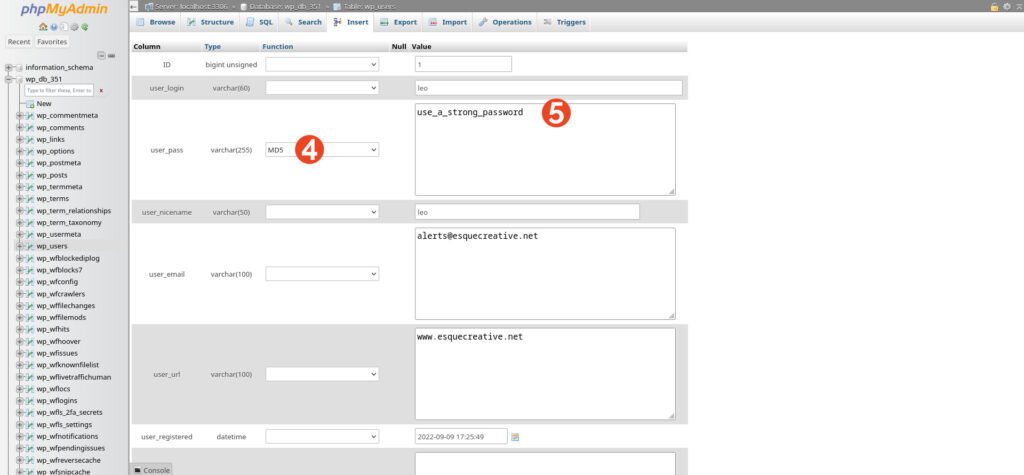
The next page reveals the individual fields within the wp_users table. Among these fields, you’ll find user_pass which is where an encrypted form of the password is stored. To change your WordPress password, do the following:
- Select MD5 in the Function column of the user_pass field. This is how the password you create will be encrypted.
- Next, enter a strong password in the value column of the user_pass field.
- When you’re done, scroll down a little and click Go.
When you refresh the page, you’ll see that an MD5 hash has been applied to encrypt your password. But is that good enough? Not quite since a plain old MD5 hash can be decrypted without too much effort. Luckily, WordPress verifies proper encryption of your password when you log in, which means you’ll see your hashed MD5 string change in the database after you’ve logged into your account.
4. How to Reset a WordPress Password Using WP-CLI
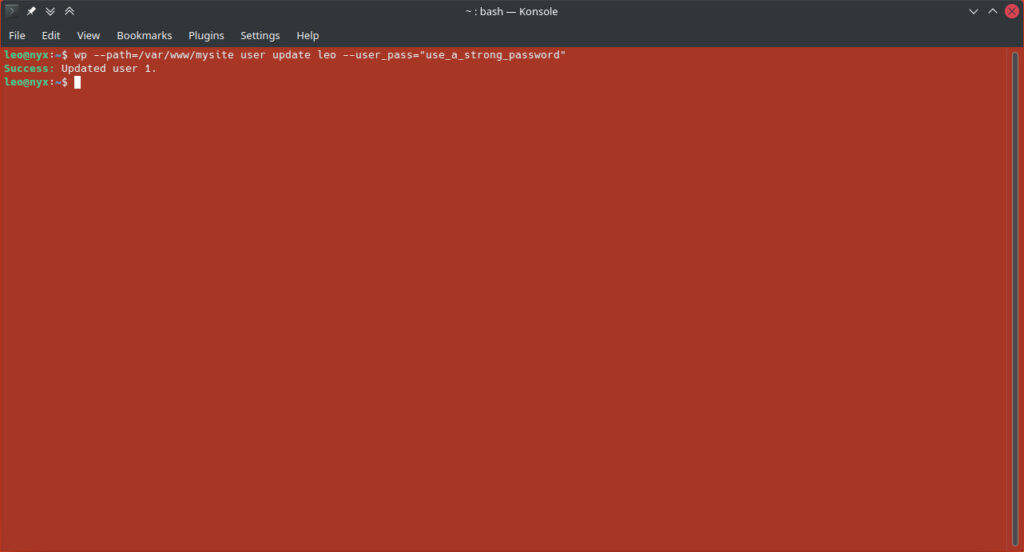
The WordPress Command-Line Interface makes life a lot easier by speeding up tasks that would usually require more steps to complete from the WordPress dashboard, like resetting a password. If you have access to the WP-CLI, you can use the user update command. The command structure looks like this:
wp user update <username> --user-pass=<"password">
If you’re running more than one WordPress installation, you’ll need to add the –path switch to specify for which WordPress installation you wish to change your password:
wp --path=/var/www/mysite user update leo --user_pass="password"
5. How to Reset a WordPress Password Using functions.php (cPanel)
Using the functions.php file to reset your WordPress password comes with the caveat that you’ll need to know your WordPress user ID. If your account was the administrator account added during WordPress installation, your user ID will likely be ‘1’. If you know your WordPress user ID, follow these steps:
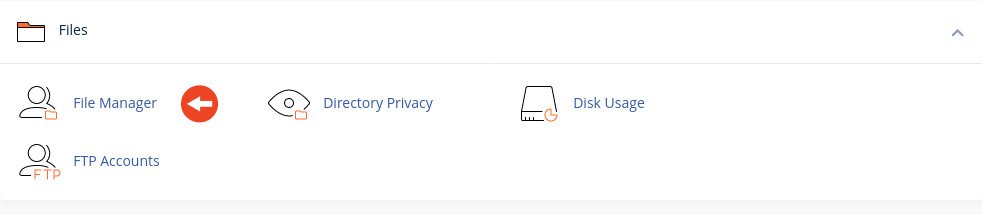
- Log into cPanel and open up the File Manager
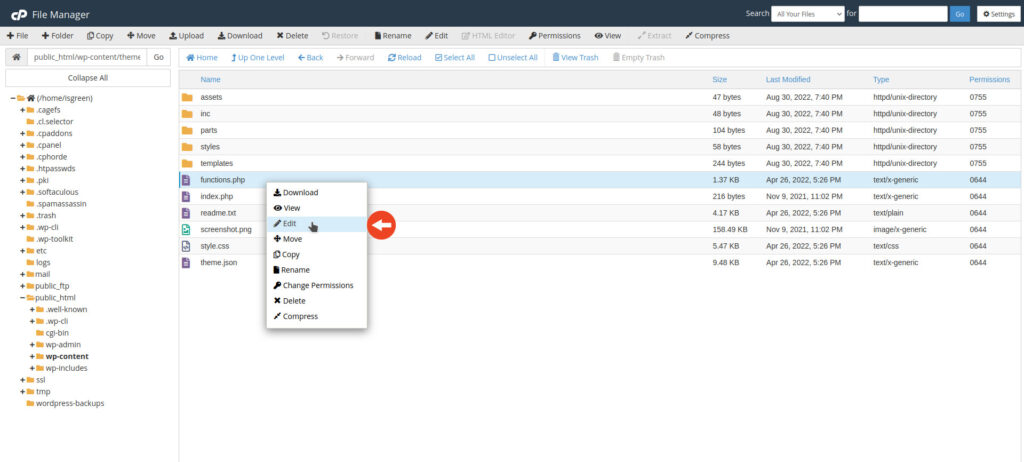
- With File Manager open, go to public_html > wp-content > themes > your active theme directory and right-click on functions.php and select Edit.
| Important: If you do not have a recent backup of your WordPress website files, it is strongly recommended to download a copy of functions.php before editing the file. Right-click on the functions.php file and select Download. |
- Click Edit on the Edit dialog box that appears to start editing, and add the following to the start of the functions.php file:
wp_set_password (‘a_strong_password', 1)
Here you’ll have to replace ‘a_strong_password’ with your desired (strong) password, and ‘1’ with your WordPress user ID. Remember to place single quotes around the password.
When you’re done, click Save Changes, but do not close the editor.
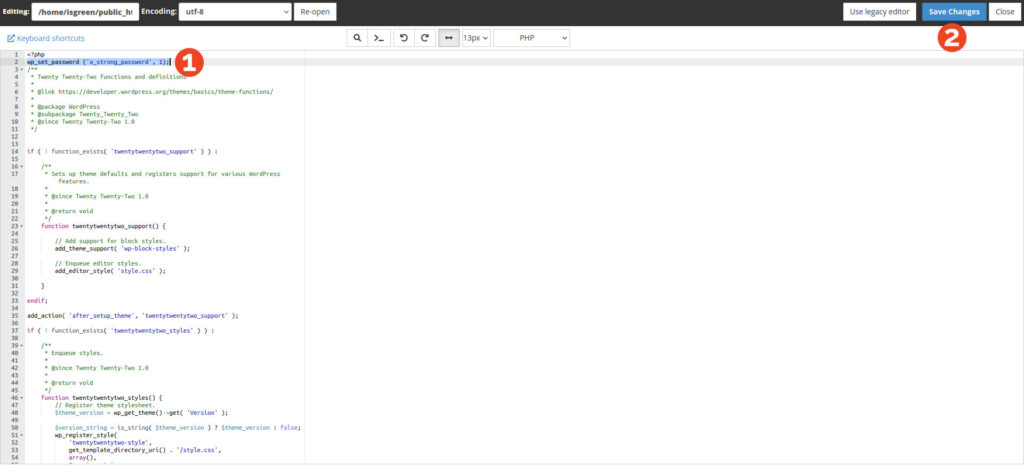
- Go to your WordPress login page, or refresh if it is already open. Once the login page has loaded, go back to the editor and remove the line of code. Click Save Changes and close the editor.
(Note: If you do not remove the line of code, your password will be reset whenever functions.php is read, and you’ll be returned to the login page every time you try to log into your account.)
- Enter your new password and log in.
How to Change Your WordPress Password
Just want to find out how to change your WordPress password? It’s an easy task that can be accomplished in a few easy steps:
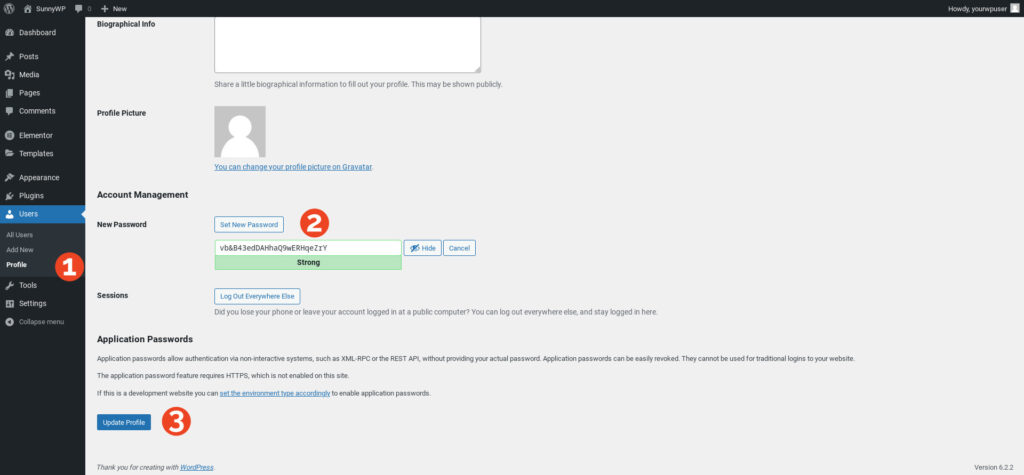
- Log into your WordPress account and navigate to Users > Profile.
- Scroll down to Account Management and click on Set New Password.
- Enter your new password and click Update at the bottom of the page. (See WordPress Password Best Practices below)
WordPress Password Security: Understanding Hashes and Salts
When you log into your WordPress website, the password you enter isn’t compared directly to the value of user_pass in the database. Had this been the case, every login attempt would fail, despite having the correct password. To understand this part of WordPress authentication, it’s necessary to take a look at some of the processes employed when you change your WordPress password.
WordPress employs hashing, which is a cryptographic function that turns a string of text into what appears to be a string of random characters, called a hash. There are a number of different hashing algorithms available, with MD5 being employed by WordPress.
But, since MD5 is a bit weathered and not as secure as it once was, more is needed to provide adequate password encryption to protect the credentials of WordPress users. To this end, cryptographic salts are added to passwords. A cryptographic salt is a unique piece of data that helps obscure a password. As such, even where passwords are exactly the same, cryptographic salt ensures that their hashed forms are unique.
In addition to the MD5 hashing process (which is run 8 times), WordPress also uses key and password stretching which, when your password is finally hashed and stored in the database, makes it impossible to guess.
Also read: What To Do When Your New WordPress Site Is Hacked
WordPress Password Best Practices
Back in 2012, Jeremi Gosney simulated brute-force attacks to determine the strength of several hashing algorithms. The test employed a cluster of Graphical Processing Units (GPUs) to test how long it would take to crack the MD5, SHA1, and bcrypt algorithms respectively. Here are the results:
- MD5: 180 billion guesses per second — all 8-character passwords cracked in ~9 hours.
- SHA1: 61 billion guesses per second — all 8-character passwords cracked in ~27 hours.
- bcrypt: ~71,000 guesses per second — all 8-character passwords cracked in ~27 years.
So what does that mean for your WordPress password? While WordPress still uses the MD5 hashing algorithm, WordPress passwords aren’t plain MD5 hashes. Instead, as explained above, they’re modified with salts, stretched, and hashed multiple times. This means it could potentially take a very, very long time to crack your password. But there are other cracking techniques, which underscore the importance of adhering to password best practices, such as:
- Never use a password that’s easy to guess. NordPass’s Most Common Passwords List provides examples of weak passwords and common patterns.
- Avoid outdated ‘strong password’ advice. Modern best practice is a passphrase of at least 14 characters, not just 8 characters with symbols.
- Never reuse passwords. If one site is breached, reused passwords create a chain of vulnerabilities.
- Don’t record passwords insecurely. Avoid paper notes, emails, or unsecured files.
- Enable Two-Factor Authentication (2FA). Use plugins like Wordfence Security to add a second authentication layer.
Also read: Why Site Owners Should Run Regular WordPress Security Audits
| Definitions |
|---|
| WP-CLI: WordPress Command-Line Interface for managing WordPress from the terminal. |
| phpMyAdmin: A web-based tool for managing MySQL databases via cPanel or hosting control panel. |
| SMTP: Simple Mail Transfer Protocol, ensures reliable email delivery (e.g., password reset emails). |
| user_email vs user_login: user_email stores the email address of the account, user_login stores the username. |
WordPress Passwords FAQ
Didn’t get the reset email — what now?
If you don’t see the reset email, check your spam folder. If it’s still missing, your host may have poor deliverability. Install an SMTP plugin and configure it with a trusted provider like Gmail or SendGrid. See our cache clearing guide if issues persist after logging in.
No admin access — can I reset in the database?
Yes. You can edit the wp_users table in phpMyAdmin and update the user_pass field with an MD5 hash. WordPress will rehash securely on login. For best security, use WP-CLI:
wp user update <username> --user_pass="newpassword"Are there differences in WordPress Multisite?
Yes. In Multisite, only a super admin can reset passwords across the network. Site admins cannot reset network-level credentials.
How secure is the “Remember Me” option?
Safe on personal devices, but never use it on public or shared computers. Always log out when using a café or coworking system.
What are the best practices for creating strong passwords?
Use at least 14 characters, mix upper/lowercase, numbers, and symbols. Never reuse passwords, and enable 2FA where possible.
Locked out or email not sending?
We’ll restore access and harden your login. Contact Sunny HQ today to get expert help.
What to do next
The techniques discussed above range from easy methods like using the WordPress Password Reset Feature to more technical ones such as resetting the password through phpMyAdmin or the WP-CLI. But not everyone has the skill or time to perform technical tasks. With WordPress Website Management you get the peace of mind needed to focus on your business, while our team of administrators and engineers carry the technical load. The next time you need your password reset, just ask.